
Squarespace was about to renew my site for $350. I had been meaning to leave for a while, mostly because the bill went up every year and because I write software for a living and still could not run a single command against my own website. The renewal notice was the shove.
So I moved the whole thing to WordPress on Hostinger, behind Cloudflare, and kept notes on every step because I did not want to do it twice. Those notes ran long, and I left them that way on purpose. Follow them in order and you can move your own site without losing your search rankings, without your email going dark for a minute, and for a fraction of what you pay now. Every script I used is in the post, so copy them.
I am a headshot photographer in Toronto, not a WordPress consultant, so I cared about two things a consultant might not: my blog posts had to keep ranking, and my clients had to keep reaching me. Both came through fine.
I should also say up front how I did it, because it is the reason a photographer could pull this off in a week. I ran the whole migration with an AI coding agent. It wrote the scripts you are about to see, converted my Squarespace pages into WordPress blocks, rebuilt the design from the captured styles, and did the grinding work of matching every old URL to its new home. I read what it did, ran the commands myself, and checked the result at every gate, so I was directing the work rather than typing all of it by hand. I will point out where the agent did the heavy lifting as we go. Pretending I did every keystroke myself would be a lie, and it would be worse advice, because the whole point is that you can do this the same way. So throughout the guide, wherever a step suits it, I have dropped in the exact kind of prompt you can hand an agent to do that step for you. Adapt them to your own site, or ignore them and run the scripts by hand.
Four rules that kept it safe
Before any of the steps, the rules I did not break. They are the difference between a migration and an outage.
Capture everything before you change anything. You cannot rebuild what you did not save, and the Squarespace export quietly leaves things behind. I mirrored the entire live site to disk first.
Never cancel a thing until its replacement is proven. The Squarespace website plan was the last thing I touched, days after the new site was live and stable. Email billing, DNS, domain, and the site each moved to their replacement and were verified before anything old was switched off.
Email is sacred. Every step that went near DNS ended with me sending a message to my own address from an outside account and replying to it. If that round trip failed, I stopped.
Keep your URLs identical. Almost all of keeping your rankings comes down to this one thing. If example.com/blog/your-post stays example.com/blog/your-post, Google barely notices you moved. Ninety percent of “I migrated and my traffic tanked” stories are someone letting their URLs change and skipping the redirects.
The work splits into four streams that mostly run in order: capture, then email billing, then DNS and domain to Cloudflare, then build and verify the new site and cut over. I will take them in the order I actually did them.
Part 1: Capture everything
The goal here is a complete, local copy of the site as ground truth. You will lean on it for the next week.
Inventory the export
In Squarespace, go to Settings, then Import and Export, and export to WordPress. You get an XML file (a WXR export).
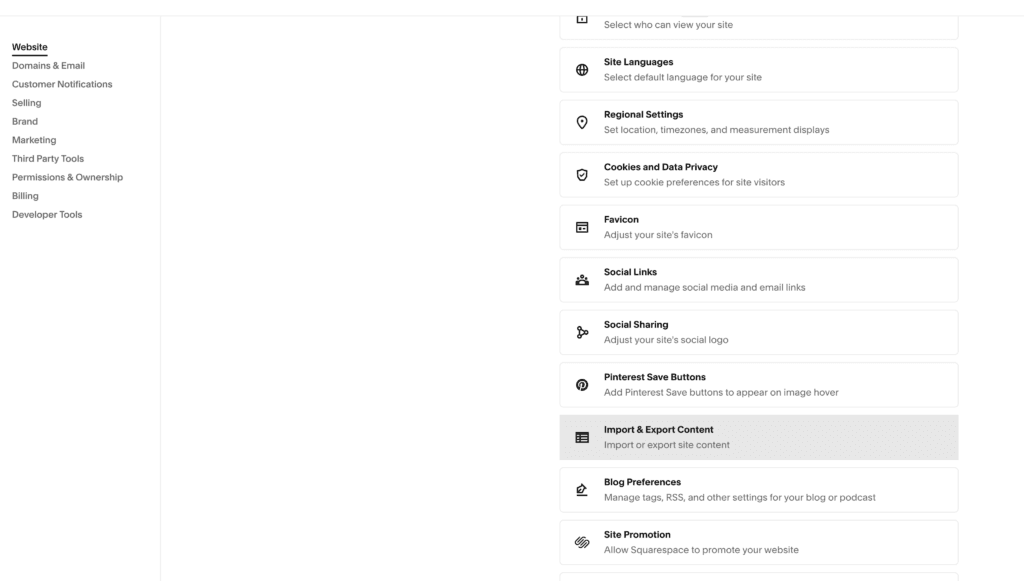
Before trusting it, count what is in it. This little script prints the post and page counts and lists every item with its live URL:
#!/usr/bin/env python3
"""Summarize the Squarespace WordPress XML export: counts and slugs."""
import defusedxml.ElementTree as ET  # stdlib etree is XXE-vulnerable; use the hardened parser
from collections import Counter

NS = {"wp": "http://wordpress.org/export/1.2/"}
tree = ET.parse("capture/wordpress-export.xml")
items = tree.getroot().findall(".//item")
by_type = Counter(i.findtext("wp:post_type", "?", NS) for i in items)

for t, c in sorted(by_type.items()):
    print(f"{t}: {c}")
Mine came back with 110 posts and 18 pages. Write that number down. You will check against it after the import, and if the import comes up short, you will know immediately instead of three weeks later when a page is missing from Google.
Ask your agent: Parse this WordPress export XML and tell me how many posts and how many pages it contains, and flag any item whose body looks empty or cut off.
Mirror the whole site
The export gives you text and a media manifest. It does not give you the design, and it does not always give you the real images. So mirror the live site with wget:
#!/usr/bin/env bash
set -euo pipefail
wget --mirror --page-requisites --adjust-extension --convert-links
     --span-hosts
     --domains=example.com,www.example.com,images.squarespace-cdn.com,static1.squarespace.com
     --wait=1 --random-wait
     --user-agent="Mozilla/5.0 (Macintosh; Intel Mac OS X 10_15)"
     --directory-prefix=capture/site-mirror
     https://example.com/
echo "Mirror complete: $(find capture/site-mirror -name '*.html' | wc -l) HTML files"
The --wait=1 --random-wait is politeness, not superstition. Hammer Squarespace’s CDN and you can get throttled mid-crawl. Let it take its time. When it finishes you have every page’s rendered HTML and CSS, which is what you will rebuild the design from.
Ask your agent: Write a polite wget command that mirrors my whole site to a local folder, including its CSS, JavaScript, and the images served from the Squarespace CDN, with a short random delay between requests so I do not get throttled.
Pull the real images
Most migration guides skip this one. Squarespace serves images through its CDN at whatever size fits the layout, so what the importer grabs is often a downsized version. Go get the originals. This walks the mirror, finds every Squarespace CDN image, and fetches the largest variant it can:
#!/usr/bin/env python3
"""Find every squarespace-cdn image in the mirror and fetch the largest variant."""
import hashlib, pathlib, re, urllib.request

MIRROR = pathlib.Path("capture/site-mirror")
OUT = pathlib.Path("capture/images-fullres"); OUT.mkdir(parents=True, exist_ok=True)
pat = re.compile(r'https://images.squarespace-cdn.com/[^"'s)<>]+')

urls = set()
for f in MIRROR.rglob("*"):
    if f.suffix in (".html", ".css", ".js"):
        urls.update(pat.findall(f.read_text(errors="ignore")))

for u in sorted({x.split("?")[0] for x in urls}):
    name = hashlib.sha1(u.encode()).hexdigest()[:8] + "-" + u.rstrip("/").split("/")[-1]
    dest = OUT / name
    if dest.exists():
        continue
    for candidate in (u + "?format=original", u + "?format=2500w", u):
        try:
            urllib.request.urlretrieve(candidate, dest); break
        except Exception:
            continue
The trick is the ?format=original query. Squarespace will hand you the full resolution file if you ask for it by name. Check a few with sips -g pixelWidth afterward; gallery shots should come back at 2000 pixels or more, not the 640-wide thumbnails the importer would have settled for.
Ask your agent: Scan my site mirror for every Squarespace CDN image and download the original full-resolution version of each, trying the
?format=originalquery first and falling back to the largest size that responds.
Build the master URL list
Every one of these has to still resolve when you are done. Pull the list straight from the live sitemap:
#!/usr/bin/env python3
"""Build capture/url-inventory.csv from the live sitemap (handles sitemap indexes)."""
import csv, re, urllib.request

def locs(url):
    xml = urllib.request.urlopen(url).read().decode()
    return re.findall(r"<loc>(.*?)</loc>", xml)

urls = []
for loc in locs("https://example.com/sitemap.xml"):
    urls += locs(loc) if loc.endswith(".xml") else [loc]

with open("capture/url-inventory.csv", "w", newline="") as f:
    w = csv.writer(f); w.writerow(["url"])
    for u in sorted(set(urls)):
        w.writerow([u])
Also pull your top pages from Google Search Console, separately, because the sitemap and the pages Google actually indexed are rarely the same set. Keep both lists. The difference between them is where the worst surprises hide, and it cost me more time than the rest of the move put together.
Ask your agent: Read my sitemap, follow the sitemap index, and write every page URL to a CSV. Then pull my top pages from Search Console and show me which indexed URLs are missing from the sitemap.
Snapshot your DNS
Before you touch anything at the registrar, capture your DNS two ways, because the two do not always agree and you want both on record.
First, by hand. Open your Squarespace DNS panel (Settings, Domains, your domain, DNS settings) and write down every record it shows: host, type, priority, value, and TTL, in a plain table you keep. Squarespace preloads records for its own services and for Google Workspace, and a few are easy to overlook because the panel tucks them out of sight. If a record lives in that panel and you do not copy it, it is gone the moment you leave, so take all of them, including the ones you do not recognize.
Second, from outside, with dig, so you also have the view the rest of the internet actually sees:
#!/usr/bin/env bash
set -euo pipefail
D=example.com
for t in NS MX TXT A AAAA SOA; do
  echo "== $D $t =="
  dig +noall +answer "$D" "$t"
done
echo "== DKIM =="; dig +noall +answer "google._domainkey.$D" TXT
echo "== DMARC =="; dig +noall +answer "_dmarc.$D" TXT
Save both. Where the panel and dig disagree, a record shown in Squarespace that does not resolve, or one that resolves but is missing from the panel, note it, because that is a record you will have to make a deliberate call about later. Your MX records, the ones that route your mail, along with SPF, DKIM, and DMARC, are the ones you guard with your life through the move. Everything else can change. Those cannot.
This is the screenshot after I’ve migrated to cloudflare
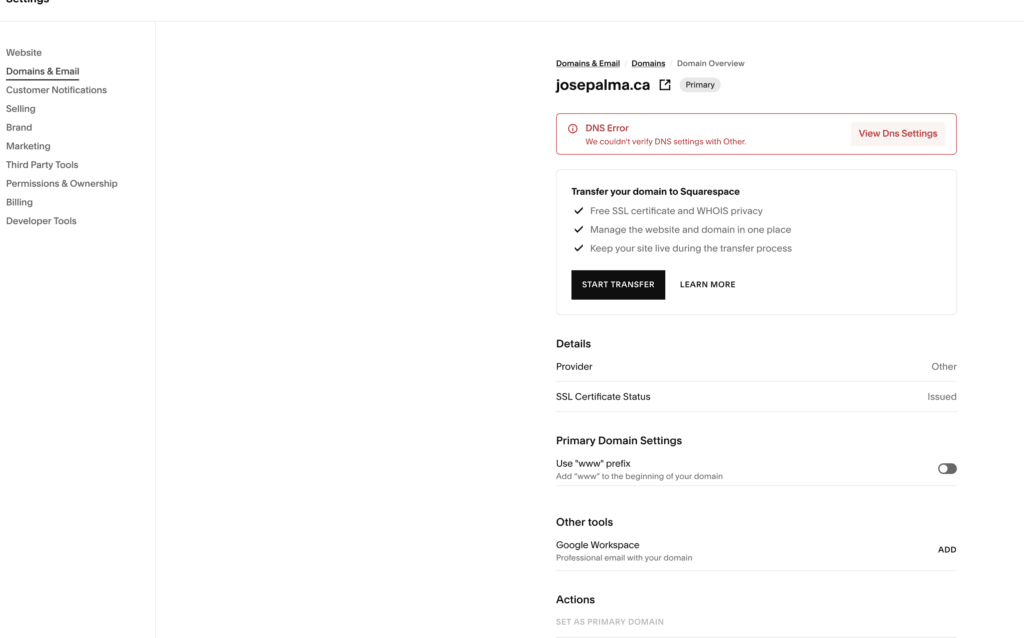
Ask your agent: Write a script that records my NS, MX, TXT, SPF, DKIM, DMARC, A, and AAAA records to a timestamped file, so I can run it again after the move and diff the before against the after.
Part 2: Move your email billing first, carefully
If you bought Google Workspace through Squarespace, that subscription is the scariest thing to move, because it is your email. Move it first, while everything else is still stable underneath you. It is also less dramatic than it sounds once you understand one thing: on Squarespace, cancelling the Google Workspace subscription is the transfer. It does not delete your mailbox. It hands the whole account, mail and contacts and Drive, to Google intact, and opens a grace period of about a week in which you put your own payment method on file with Google. Do that inside the window and nothing about your email changes except who sends the invoice.
Before you cancel anything, check five things.
Get into the Google Admin console with your own account. Go to admin.google.com and sign in with your Workspace address (the you@yourdomain one, not a personal Gmail). You should land on the admin dashboard. If you cannot get in as an administrator, stop and fix that first, because the entire move happens from this console.
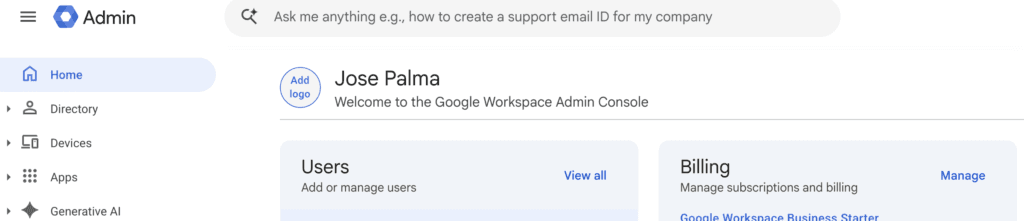
Confirm you are a super administrator. In the Admin console under Account, Admin roles, your user should read Super Admin. Squarespace refuses to cancel the subscription if the account has no administrator, and if you are the only person on the domain, that administrator has to be you.
Find your exact plan tier and write it down. Billing, then Subscriptions, shows what you are on, something like Business Starter. You re-select this same tier when you set billing up on Google’s side, so know it before you start. Mine was Business Starter.
Have the credit card ready that Google’s billing will go on.
Know the refund rules going in. An annual Workspace plan gets the unused portion prorated and refunded automatically. A monthly plan gets nothing back. Any promotional free year you are riding is forfeited the moment you cancel, so if you are on one, wait until it is nearly up before doing this.

Then run the pre-move email test: from an outside account, send a message to your domain address, and reply to it from the Workspace side. Confirm both directions arrive. You will run this exact test again afterward, and the two results are your proof that nothing broke.
Now the move, in one sitting, start to finish, without wandering off in the middle:
- In Squarespace, open Billing, find Google Workspace under your subscriptions, and cancel it. The button is some wording like “Cancel Google Workspace subscription.” Confirm it. This is the handover, not a deletion.
- Right away, in the same sitting, go to admin.google.com and open Billing. Google will be flagging the account as needing a payment method. Add your card and re-establish the subscription at the tier you wrote down. Google’s checkout offers Flexible (pay monthly, cancel anytime) or an Annual commitment (a little cheaper per month, locked for a year). Take Flexible for now and switch to Annual later, once everything has settled and you trust the setup.
- Back in Admin, Billing, Subscriptions, confirm it reads Active, billed by Google, with your card attached.
- Run the email round trip again. Both directions should land exactly as before.
The only window where your mail is genuinely at risk is that grace period, and only if you leave the billing half undone. Cancel and re-establish in the same sitting and your exposure is minutes, not days. Your MX records never move in any of this, DNS is untouched, which is exactly why it is safe to do this before you go anywhere near Cloudflare or the registrar.
While you are already in the Admin console, spend twenty minutes on something Squarespace almost certainly was not doing for you: email authentication. When I checked my DNS I had no SPF, no DKIM, and no DMARC at all. Mail still sent, but it landed in spam more than it should have, and anyone could spoof my address. Three TXT records fix that, and they go wherever your DNS lives (for me, once I had moved, that was Cloudflare).
SPF says which servers are allowed to send mail as your domain. For Google Workspace it is one record on the root:
Type: TXT Name: @ Value: v=spf1 include:_spf.google.com ~allDKIM signs your outgoing mail so it cannot be forged, and you do not write it by hand, Google generates it. In the Admin console: Apps, Google Workspace, Gmail, Authenticate email, choose your domain, Generate new record (2048-bit is fine). Google hands you a host of google._domainkey and a long value beginning v=DKIM1; k=rsa; p=. Publish it as a TXT record, then return to that same screen and click Start authentication. Miss that final click and the record just sits there, because Google is not signing with it yet.
Type: TXT Name: google._domainkey Value: v=DKIM1; k=rsa; p=<the long key Google gives you>DMARC ties SPF and DKIM together, tells receivers what to do with mail that fails both, and gives you a reporting address. Start in monitor mode so you cannot break anything:
Type: TXT Name: _dmarc Value: v=DMARC1; p=none; rua=mailto:you@yourdomain.comp=none means watch and report, do not block. Leave it there a few weeks, read the reports that arrive at that address, and once you are confident all your real mail passes, tighten it to p=quarantine and later p=reject. Mine is still at p=none, which is a perfectly reasonable place to sit until you have watched enough reports to trust the stricter settings. None of this is required to migrate, but you are right there, and it is the cheapest upgrade your email will ever get.
Ask your agent: Look up the current, official steps for moving a Google Workspace subscription from Squarespace billing to direct Google billing, and lay them out for me. Then check my domain’s DNS for SPF, DKIM, and DMARC and tell me which are missing and the exact records to add.
A word on the money, because this line went the opposite way to everything else. Google Workspace through Squarespace was actually a little cheaper than paying Google directly. The catch is that the Squarespace-managed version is fenced off: several integrations are locked down, and in practice you are paying for barely more than the mailbox. Going direct costs slightly more and hands you the whole of Workspace. I treat it as a small premium for the real product instead of a slice of it, but go in knowing this one line on your bill goes up, not down.
Part 3: DNS to Cloudflare, then the domain itself
Two separate moves, in this order, and the order matters.
First, move only the DNS. Add your site to Cloudflare on the free plan and let it scan and import your records. This will show errors, and that’s perfectly fine, we are preparing the domain not to fail. Then audit what it imported against the snapshot you took in Part 1. I used this to dump Cloudflare’s view of the zone:
#!/usr/bin/env bash
set -euo pipefail
: "${CF_API_TOKEN:?}" "${CF_ZONE_ID:?}"
curl -s -H "Authorization: Bearer $CF_API_TOKEN"
  "https://api.cloudflare.com/client/v4/zones/$CF_ZONE_ID/dns_records?per_page=100"
  | python3 -c 'import json,sys; [print(r["type"], r["name"], r.get("priority",""), r["content"]) for r in sorted(json.load(sys.stdin)["result"], key=lambda x:(x["type"],x["name"]))]'
Go line by line. Every MX record with its priority, the SPF TXT, the DKIM TXT under google._domainkey, the DMARC TXT, and any domain-verification TXT records have to be present and correct.
Now the part people get wrong, the proxy status, the orange and grey cloud next to each record, because botching it breaks either your email or your SSL. Mail records, MX and every TXT, must be DNS only, the grey cloud, always. Cloudflare never proxies mail, and if it tried, your email would stop. Keep the website’s own records grey too for now, the A record and the www CNAME, because they still point at Squarespace, and you do not want Cloudflare proxying in front of and forcing its SSL onto a site it does not host yet. So at this stage every record is grey: the website keeps serving from Squarespace exactly as before, and only the mail has quietly moved underneath it. The website record goes orange, proxied, at one moment and one moment only, at cutover in Part 6, at the same time you switch SSL to Full (Strict). Until then, grey. If anything is missing, add it in the Cloudflare dashboard before you go further.
Ask your agent: Here are the DNS records Cloudflare imported, and here is my baseline snapshot. Diff them and tell me which records are missing, changed, or extra, and flag any MX or TXT record set to proxied rather than DNS only.
Only once the records match do you switch your nameservers at Squarespace to the two Cloudflare gives you. Wait for propagation, usually under an hour, run your DNS snapshot again, and confirm the mail records are byte for byte what they were. Then the email round trip, again.
The domain registration is a separate move and can happen days later with zero downtime risk, since your DNS already lives at Cloudflare. Unlock the domain in Squarespace, get the transfer authorization code, and start the transfer at Cloudflare’s Domain Registration page. One thing that will stop you cold: if the registrant contact info changed in the last 60 days, ICANN or CIRA locks the domain against transfer for 60 days. Nothing you can do but wait it out, and it does not hurt anything to wait, so just carry on with the site build in the meantime.
Cloudflare sells domains at their wholesale cost with no markup. Squarespace was charging me $30 a year for my .ca. Cloudflare charges $9 for the identical name. That $21 is a rounding error next to the hosting saving, but it is the cleanest possible illustration of what a closed platform actually sells you: convenience, marked up, on top of a thing you could buy for less anywhere.
Part 4: Build the replica on Hostinger, on staging
Everything so far was reversible. Now you build the new site, and you build it on a staging URL, never on your live domain.
Hosting with a terminal
Buy a Hostinger shared plan on a tier that includes SSH access, and check the renewal price, not the flashy intro price, before you pay. The whole reason this migration was bearable is that Hostinger gives you SSH and WP-CLI, the WordPress command line. That is what let me make a hundred changes with one command instead of a hundred clicks. Install WordPress on the host’s temporary domain first.
Confirm the command line works before anything else:
ssh -p <port> user@host "cd ~/domains/staging.../public_html && wp core version && wp option get siteurl"The single most important setting
Set your permalink structure to match Squarespace’s URL shape exactly:
wp rewrite structure "/blog/%postname%/" --hardSquarespace blog posts live at /blog/<slug>. This makes WordPress do the same. Pages keep their top-level paths. Get this right and almost none of your URLs change, which means almost none of your rankings move. This one line is worth more to your traffic than any plugin you will ever install.
Import the content
Upload the export and run the WordPress importer over SSH:
scp capture/wordpress-export.xml user@host:~/wp-path/
ssh user@host "cd ~/wp-path && wp plugin install wordpress-importer --activate &&
  wp import wordpress-export.xml --authors=create"
Then check the counts against the inventory from Part 1:
wp post list --post_type=post --format=count
wp post list --post_type=page --format=count
If the numbers do not match, diff the slugs (wp post list --post_type=post --fields=post_name) against your inventory and rebuild the missing ones from the mirror. Mine came in at 110 and 110, which is when I relaxed a little.
The importer pulls images from the Squarespace CDN as it goes, and it usually misses a few, leaving your content pointing at squarespace-cdn.com. Find those with a query and fix each one with the full-res file you saved:
wp db query "SELECT ID, post_title FROM wp_posts
  WHERE post_content LIKE '%squarespace-cdn.com%' AND post_status='publish'" --skip-column-names
You do not want a single live reference to Squarespace’s CDN when you are done. Those links die the day you cancel.
Ask your agent: Import this WXR into my WordPress over SSH, then compare the resulting post and page counts to this inventory and tell me what is missing. Then list every published post whose content still points at squarespace-cdn.com.
Rebuild the design
Pull the fonts, colors, and sizes out of the mirrored CSS so you are matching real values, not eyeballing:
grep -rhoE "font-family:[^;]+" capture/site-mirror --include="*.css" | sort | uniq -c | sort -rn | head
grep -rhoE "#[0-9a-fA-F]{3,8}b" capture/site-mirror --include="*.css" | sort | uniq -c | sort -rn | head -30
This is where the AI agent did the heaviest lifting of the whole project. I had it read those results and the mirrored pages, write the real values into a small custom block theme’s theme.json (a style.css header, a theme.json, and a few block templates is all a modern WordPress theme needs), and then convert each captured page into WordPress block markup: text verbatim from the mirror, images swapped for the full-resolution files, gallery column counts matched.
Ask your agent: Read the CSS and pages in my site mirror, pull the fonts, colors, and type scale into a theme.json, and scaffold a minimal WordPress block theme from it. Then convert each mirrored page into WordPress block markup, keeping the text verbatim and pointing the images at my uploaded full-resolution files.
The part I did not expect to work as well as it did was the visual matching. Rather than me squinting back and forth between the two sites, the agent drove a real browser through Playwright: it opened the live Squarespace page and the new WordPress page at the same width, screenshotted each, compared the two itself, then went back into the theme and nudged the spacing, type, and color until the gap closed. It repeated that page by page, desktop and phone, until the old and new were hard to tell apart. I stayed the final judge, but the compare-and-adjust loop that normally eats an evening was mostly the agent’s to run. If you are doing this with an agent, two plugins for it made the whole thing far smoother, and I would recommend both. Superpowers turns a migration like this into a written plan the agent works through step by step, checking each piece off as it verifies it, which is how a sprawling job stays honest instead of drifting halfway through. And gstack is where the browser and QA skills live, including the Playwright one that ran the visual comparison against the live site. Neither is strictly required, any capable agent can open a headless browser, but together they turned a messy manual project into a checklist the agent could work straight down.
Ask your agent: Open my live page and my new WordPress page side by side in a browser, screenshot both at desktop and mobile width, compare them, and adjust the theme’s spacing, fonts, and colors until they match. Do it page by page.
For booking I was already using cal.com as an embed, so it carried straight over: a free cal.com account, the event types set up to match my sessions, and their inline embed snippet dropped into a Custom HTML block. Test a real booking end to end on staging and then cancel it.
One trap cost me an hour before I caught it. Hostinger preinstalls a few of its own plugins, and one of them, Hostinger Easy Onboarding, kept switching my active theme back to a default every time I logged into wp-admin. I would set my theme, do some work, log in again, and find the site wearing a starter theme instead of mine. Deactivate that one specifically, wp plugin deactivate hostinger-easy-onboarding over SSH or from the Plugins screen, and the reverting stops. Leave the others alone, Hostinger Tools and the auto-update helper are harmless; it is Easy Onboarding that fights you. Do this early, before you lose an afternoon wondering why your design keeps undoing itself.
The plugins, kept deliberately short
Five, no more:
wp plugin install redirection seo-by-rank-math updraftplus wp-mail-smtp contact-form-7 --activateRedirection for the 301s, Rank Math for SEO, UpdraftPlus for backups, WP Mail SMTP so your contact form actually delivers, and Contact Form 7 for the form itself. One honest caveat on Redirection: its database tables never initialized cleanly for me over the command line, so my nine redirects ended up as plain 301 lines in .htaccess instead, ahead of the WordPress block. For a handful of redirects that is simpler anyway, and it is what the site runs on today. Every plugin you add is something to update and something that can break, so resist the urge to install thirty.
Rebuild the contact form in Contact Form 7 to match the fields your old one had. Then make it actually deliver, because plain WordPress mail is unreliable and often dropped without a trace. The plan I started from said to send through the host’s own SMTP, but that is the setup most likely to land you in spam. What actually worked, and what the verification log shows going straight to the inbox, was sending through Google Workspace itself over an app password.
First get the app password: in the Google account for your domain, turn on 2-Step Verification if it is not already on, because app passwords do not exist without it, then go to myaccount.google.com/apppasswords and generate one. Google gives you a 16-character string. Copy it, you only see it once.
Then in WP Mail SMTP choose the Other SMTP mailer and enter Google’s server:
Mailer:          Other SMTP
SMTP Host:       smtp.gmail.com
Encryption:      TLS
SMTP Port:       587            (or SSL on 465)
Authentication:  On
SMTP Username:   you@yourdomain.com     (your full Workspace address)
SMTP Password:   the 16-character app password
From Email:      you@yourdomain.com     (must match the username)
From Name:       your site or business name
Two details decide whether it lands. Keep the From address aligned with the account you authenticated as; if the From does not match the sending account, your own SPF and DKIM start working against you. And on the Contact Form 7 form itself, set Reply-To to the submitter’s address, so when a client writes in you can just hit reply. Send the plugin’s built-in test, confirm it arrives, then submit the real form. Mine landed in the inbox rather than spam, which is the SPF, DKIM, and DMARC from earlier all passing at once, with Gmail negotiating TLS on the way out.
Ask your agent: Give me the exact WP Mail SMTP settings to send through Google Workspace with an app password, and remind me how to generate the app password and where the From address has to match.
With the form delivering, carry your SEO metadata across. Scrape the old titles and descriptions out of the mirror:
import csv, pathlib, re
rows = []
for f in pathlib.Path("capture/site-mirror").rglob("*.html"):
    html = f.read_text(errors="ignore")
    title = re.search(r"<title>(.*?)</title>", html, re.S)
    desc = re.search(r'name="description"[^>]+content="([^"]*)"', html)
    rows.append([str(f), title.group(1).strip() if title else "", desc.group(1).strip() if desc else ""])
csv.writer(open("capture/meta-inventory.csv","w")).writerows(rows)
Then set each page’s title and description in Rank Math to the captured values and turn on the Rank Math sitemap. Do not let the tool invent new metadata for you here; you are preserving, not rewriting.
Ask your agent: Extract the title tag and meta description from every HTML file in my mirror into a CSV keyed by URL, so I can drop each one straight into Rank Math.
Part 5: The staging gate, which you do not skip
One check decides whether you get to cut over. Every URL you captured must return 200 on the new site:
#!/usr/bin/env python3
"""Every captured URL must return 200 on the target host. Usage: verify-urls.py https://staging.url"""
import csv, sys, urllib.error, urllib.parse, urllib.request

base = sys.argv[1].rstrip("/")
failures = []
for r in csv.DictReader(open("capture/url-inventory.csv")):
    path = urllib.parse.urlparse(r["url"]).path or "/"
    try:
        with urllib.request.urlopen(urllib.request.Request(base + path, method="HEAD",
                headers={"User-Agent": "migration-verify"}), timeout=15) as resp:
            code = resp.status
    except urllib.error.HTTPError as e:
        code = e.code
    if code != 200:
        failures.append((path, code)); print(f"FAIL {code}  {path}")
print(f"n{len(failures)} failures")
sys.exit(1 if failures else 0)
Run it against staging. Zero failures, or you do not proceed. A failure is either a page you missed or a redirect you still owe. Fix it now, on staging, where nobody can see it. One Hostinger quirk to plan for: it rate-limits rapid requests, so a checker that fires as fast as it can gets throttled and reports failures that are not real. Pace it, roughly a third of a second between requests, with a retry on the occasional blip.
Ask your agent: Check that every URL in my inventory returns 200 on my staging site, following redirects, and give me a list of any that fail with their status codes.
Alongside that: rerun the CDN-reference check and get it to zero, complete and cancel one real test booking, submit the contact form and confirm it reaches your inbox, and walk every page next to its mirror at both desktop and phone width. A Lighthouse run on the home page and one post is worth doing as a sanity check for broken resources, though do not go chasing a perfect score, it is not the point today.
When all of that is green, you have earned the cutover.
Part 6: The cutover
Small, ordered, and reversible where possible.
TLS before DNS. The order matters, and getting it backwards is where people get stuck. Your host wants to issue its free certificate and cannot, because the domain does not point at it yet. So do it the other way: in Cloudflare, generate an Origin CA certificate for the domain and www, install that cert and key on the Hostinger site, and set Cloudflare’s SSL mode to Full (Strict). Now the padlock works the instant DNS flips.
Tell WordPress its real address:
wp option update home "https://example.com"
wp option update siteurl "https://example.com"
wp search-replace "https://staging-url" "https://example.com" --all-tables --precise
wp cache flush && wp rewrite flush --hard
The search-replace is important. Staging URLs get baked into imported content and settings, and if you skip this you get a half-broken site serving mixed links.
Ask your agent: Give me the exact WP-CLI commands to move this WordPress from its staging URL to my production domain, including the database search-replace and the cache and rewrite flush, and tell me what to check the moment it is done.
I’ve removed the IP and showed the status before we moved to proxy in this image
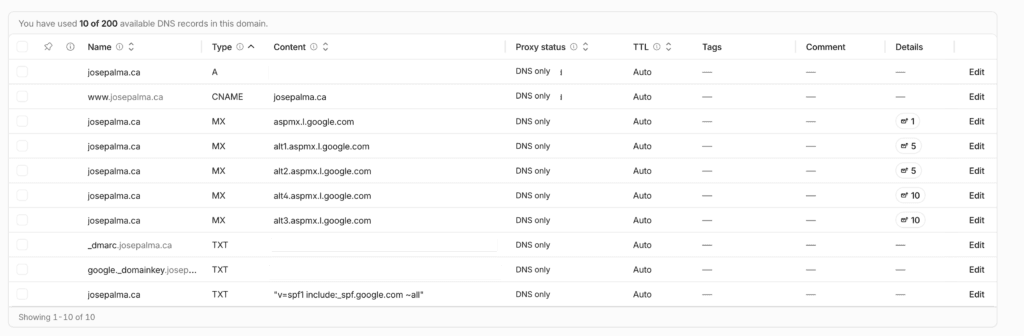
Flip the DNS, and only now turn on the proxy. In Cloudflare, point the A record for the domain (and the CNAME for www) at Hostinger, and switch it to orange, proxied, now that the origin certificate and Full (Strict) are both in place. This is the first and only time the website record goes orange. It was grey through the entire interim, and it is this flip, proxied plus Full (Strict) together, that finally puts Cloudflare in front of your site. Leave MX and TXT exactly as they are, grey and untouched. That last part is not optional: touch your MX records here and you have just taken down your email to save five minutes.
Then verify production the same way you verified staging: the DNS snapshot shows mail records identical to baseline and the A record on the new host, verify-urls.py https://example.com returns zero failures, the CDN check is clean, the padlock is valid, a live contact form submission arrives, and one more email round trip passes. Submit your new sitemap (/sitemap_index.xml, Rank Math’s default) in Search Console.
If all of that holds, the site is moved. But you are not done, and this next part is the one nobody writes about.
Part 7: The cleanup nobody documents
The site looked finished the moment it loaded. It was not. A migration that keeps its traffic and one that slowly bleeds it look identical on day one. The difference is all in the week afterward, in the checks nobody screenshots, and that week is where my time actually went.
The 404 sweep. That second list, the pages Google had actually indexed, earns its keep now. I had the agent cross-check every URL Google had sent traffic to over the past year against the new site. Most were fine. A handful returned 404, and they were Squarespace’s own system-generated URLs, ugly hashed slugs like /blog/e3bhzhjbvci4e3180yu6ffvdwpjcj6, that were never in my export because they were duplicates Squarespace had quietly indexed. One of them had been holding 1,492 impressions. I found what each one actually was by pulling it up in the Wayback Machine, matched it to the real post on the new site, and added a 301. If you skip this, those are dead pages in Google’s index with your rankings attached to them.
Ask your agent: Take this list of URLs from Search Console, check each on the live site, and for every 404 work out what the page used to be, using the Wayback Machine if it is not obvious, match it to the right new URL, and build me a 301 redirect map.
Rank Math caches its sitemap. After I created a batch of pages by script, the sitemap I had just submitted to Google still showed the old count. Rank Math serves a cached copy. You have to force it:
wp rankmath sitemap generate && wp litespeed-purge allI would have handed Google a stale sitemap and never known, if I had not diffed the live count against the real page count.
wp db export does not work on Hostinger. Shared hosting disables the PHP function it needs (proc_open), so the obvious backup command fails. Use UpdraftPlus for full backups, and for quick one-off safety before editing a page, just dump the one post’s content to a file first. Learn this before you need a backup, not after.
Your robots.txt is probably a mess, and part of it is not yours. Cloudflare has a feature called Managed robots.txt, under AI Crawl Control, that injects its own block into whatever you serve, including rules that tell every AI crawler to stay out. Mine was a Frankenstein of Cloudflare’s injection stacked on a leftover Squarespace block full of paths that no longer existed. I replaced the real file on the server with a clean one, and then, separately, turned off Cloudflare’s managed toggle, because a physical file cannot override what Cloudflare bolts on at the edge. While I was there I added an llms.txt so AI assistants can find and cite the site, and decided on purpose which crawlers to allow, instead of taking whatever default the platform picked.
Ask your agent: Write me a clean WordPress robots.txt and an llms.txt for my site, tell me how to turn off Cloudflare’s Managed robots.txt so it stops overriding mine, and show me how to allow AI crawlers like GPTBot and ClaudeBot.
Cloudflare’s API token is read-only if you set it up sanely. I keep my token scoped so it cannot touch DNS, which means it also cannot purge cache. That is the right trade. Just know that cache purging is a WP-CLI job (wp litespeed-purge all), not an API one, so you are not left hunting for why your purge script gets an auth error.
Then watch Search Console for two to four weeks. With identical URLs and clean 301s, a good migration barely shows a ripple. Watch anyway.
Part 8: Only now, cancel Squarespace
Wait three to seven days after cutover with no site or email trouble. Rerun the URL verifier and one email round trip every couple of days during that hold. When it has been quiet, cancel the Squarespace website plan, and only that. Keep the free Squarespace account for your billing history. Confirm the domain and Workspace are already gone from your active subscriptions, because you moved those already. The $350 renewal never lands.
What it actually costs now
The real numbers. The Hostinger figure is that low because I bought a multi-year term.
| Before (Squarespace) | After (WordPress on Hostinger) | |
|---|---|---|
| Website plan / hosting | $350/year | about $55/year |
| Domain | $30/year | $9/year at Cloudflare, at cost |
| Email (Google Workspace) | a little cheaper, but limited to mainly email | slightly more, but the full Workspace |
| Booking | cal.com free | cal.com free |
| Roughly per year | about $380 | about $65 |
Call it $315 a year saved, and the gap widens every year, because Hostinger is not going to raise my rate the way the subscription kept doing. The domain and email lines are small and roughly cancel out; the website plan is where the money was.
Is this for you
If you just want a website and never want to open a terminal, stay on Squarespace and enjoy it. It is a good product, and the fee is fair for never thinking about updates, backups, or servers. I did not leave because it was bad.
I left because I had outgrown the box. I own my content and my URLs now. I can automate anything over SSH. I control exactly how my site meets both search engines and AI, down to the robots file. And I cut my recurring cost by most of it. The work was real, the SEO-preservation parts punish shortcuts, and the cleanup in Part 7 is the step everyone forgets. But it is all walkable, and now you have every step and every script.
If you want to see what I do when I am not moving websites, I photograph headshots and portraits in Toronto, and I build small iOS apps on the side, which is the other reason I wanted my hands back on my own stack.